
TrapTagger has historically been built around the concept of tightly controlled annotation labour. In most cases, it would be considered a waste of limited time and effort to manually label information that would not be used. As such, the annotation work flow has been set up such that users can only launch a single annotation type at a time, often for only a single species at a time. This encourages users to only target information and granularity they actually need, and prevent their annotation team from unnecessary tasks like correcting the bounding boxes for a giant herd of antelope that are not the focus of the work at hand.
In the case of manual species annotation, this was achieved through a hierarchical labelling process to keep things simple: fewer labels per pass means users can work faster and more consistently. It also allows more complex categories to be handled by more knowledgeable annotators in later stages, or for categories that aren’t of interest to be left for future annotation – like birds in a large ungulate study (again preventing your annotators from wasting time trying to figure out what exactly they are looking at).
Similarly, sighting or bounding-box correction has only been possible within a dedicated annotation workflow with the idea that one shouldn’t get sucked into the arduous task of correcting these boxes unless that data is actually going to be used for that particular species.
This strict structure can be frustrating for skilled annotators who know exactly what they are looking at and don’t want to have to do a second pass through the data, or who want to quickly correct a false detection that they have come across.
This update aims to address these issues by making sighting or bounding-box correction tools available across all annotation tasks, and by additionally introducing the option for full-hierarchical annotation in a single pass. Significantly, this full-hierarchical annotation option is being introduced as an additional option, allowing users to still make user of the strict hierarchical annotation schema for cases where they see fit.
Hierarchical Annotation
We have added the option to enable full hierarchical annotation for top-level species annotation. This allows users to choose between the classic TrapTagger hierarchical approach of annotating categories in separate dedicated annotation phases (allowing expert annotation, or rapid processing of the data), and a full hierarchical approach that will allow users to label everything down to the species level, depending on their needs.
In other words, the new full hierarchical labelling would allow users to immediately label an impala by pressing ‘A’ for antelope, and the ‘I’ for impala. Whereas in the classic TrapTagger workflow, users would first need to label the impala as an antelope, and then launch a second annotation pass of the antelope category to label it as an impala – but only if that is necessary.
This option is available as a selection at launch time of the top-level species annotation task as shown in Figure 1 below.
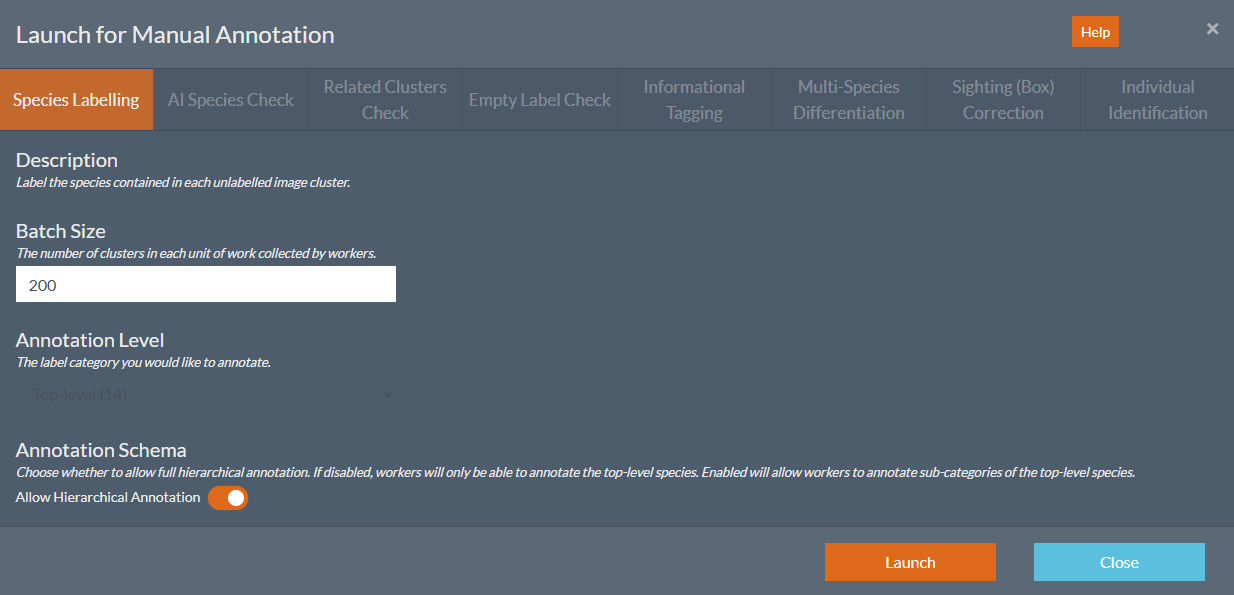
Figure 1: The new hierarchical annotation option for top-level species annotation can be selected at annotation-task launch time.
Sighting Correction Tools
We have made sighting or bounding-box correction tools available across all annotation types, the explore page, and individuals page. This allows users to edit, add, and delete sightings or bounding boxes where necessary, and to update the associated label when applicable.
These tools are available via a toolbar on the left side of the image. Right-clicking on a sighting or bounding box will also bring up a menu with available actions.
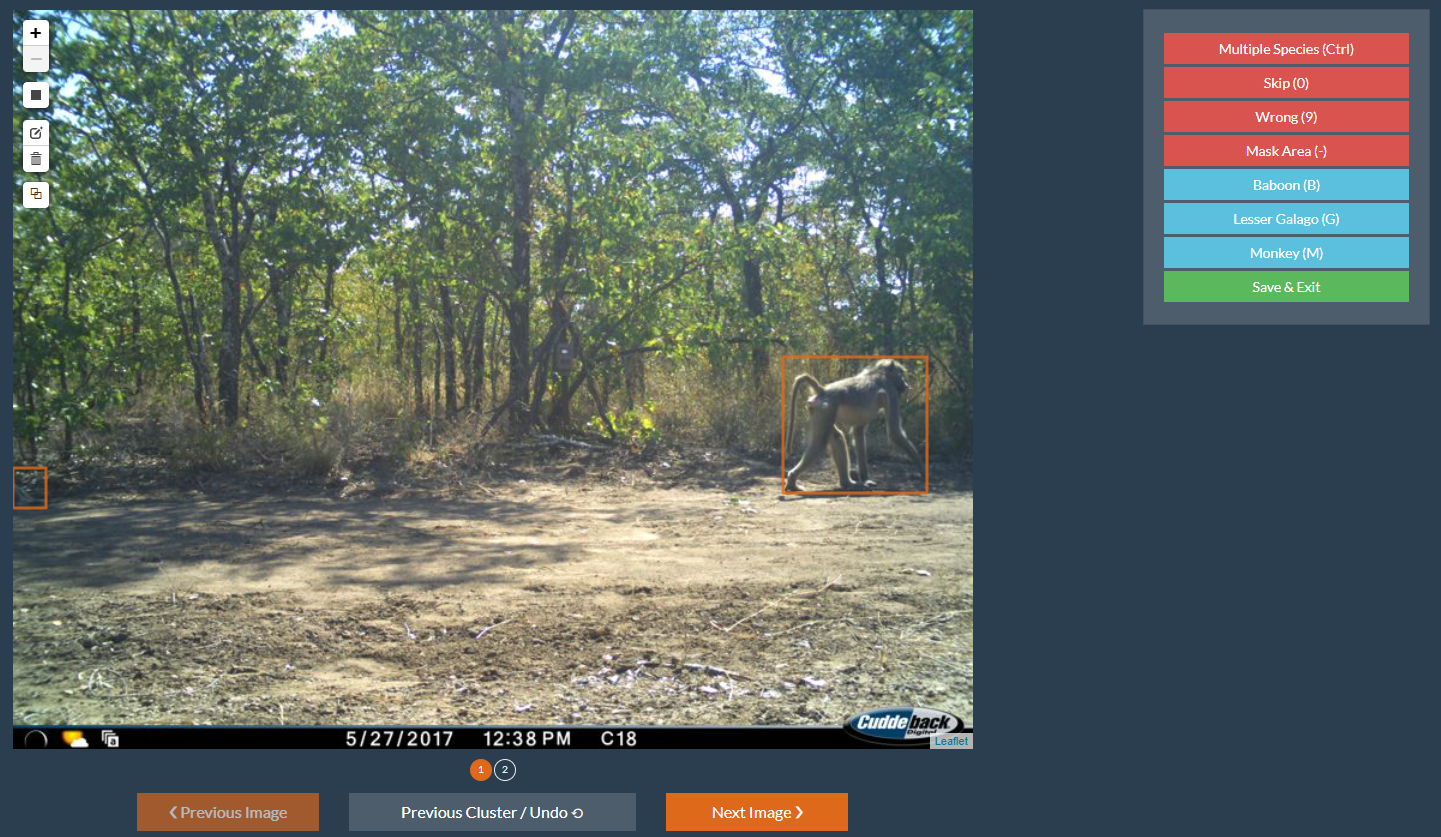
Figure 2: The sighting or bounding-box correction tools are now available across most workflows as a toolbar on the left-hand side of the image.
General Annotation Tools
While we were at it, we also took the time to carry these updates through to all annotation workflows where reasonably possible, along with a few other smaller improvements:
- Informational Tagging Workflow:
- You can now switch between Informational Tagging and Species Labelling, giving you the ability to edit the species of individual sightings or entire clusters.
- Individual Identification Workflow:
- You can now change the species of a sightings, clusters, or individuals.
- Sightings of other individuals or species in a cluster or image are displayed in grey boxes for context.
- Explore Page:
- You can now change the species of individual sightings as well as clusters.
- Select multiple boxes by holding the Ctrl key and assign species using the species buttons or hotkeys.
- Sighting information such as identified individuals is now displayed when a sighting is clicked.
- Individuals Page:
- Change the species of an existing individual.
- Sightings of other individuals or species in a cluster or image are displayed in grey boxes for context.
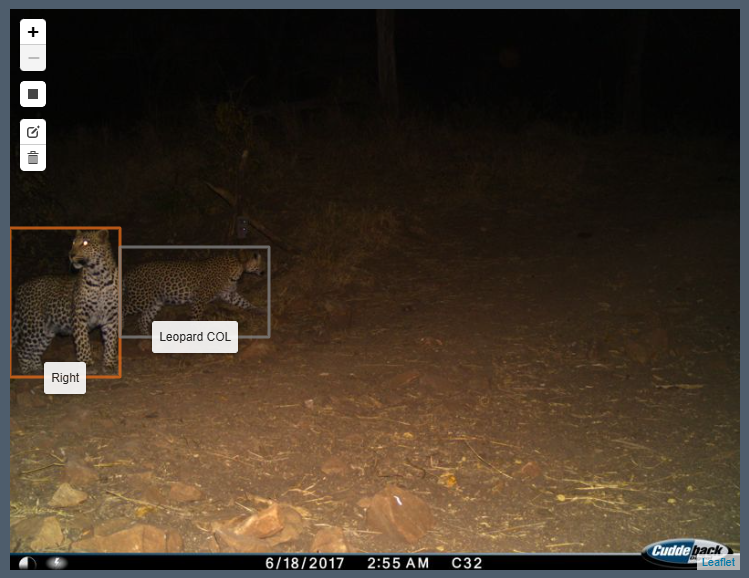
Figure 3: Other individuals and species are now displayed in the individual ID workflows as inactive sightings or bounding boxes.